CritiquePrep uses Google Gemini to analyze your photos. Paste your free Gemini key once — it stays only on this device and is never sent to us.
Free vs. paid: Gemini’s free tier is a great way to start, but at busy times it can be slow or occasionally return an incomplete result. If you use CritiquePrep regularly, adding billing to your Google account makes results faster and more reliable — only about a penny per critique.
It scores your photo the way your chosen competition would, then gives you specific, competition-legal edits to make it stronger — before you enter. It never changes your original file.
Step 1 — Connect an AI
Pick a provider and paste in that provider’s key once (it’s remembered). Gemini has a free tier and is the easiest place to start. Each provider needs its own key.
Step 2 — Add a photo & judge
Choose your competition and category, add your photograph, and tap Submit to the judge. You’ll get a score, a verdict, a breakdown, a thumbnail, and your edit recommendations.
Your score
Each competition uses its own real scale (PSA out of 27, FCCC 1–20, and so on), so your number means what it would to that competition’s judges.
The edits
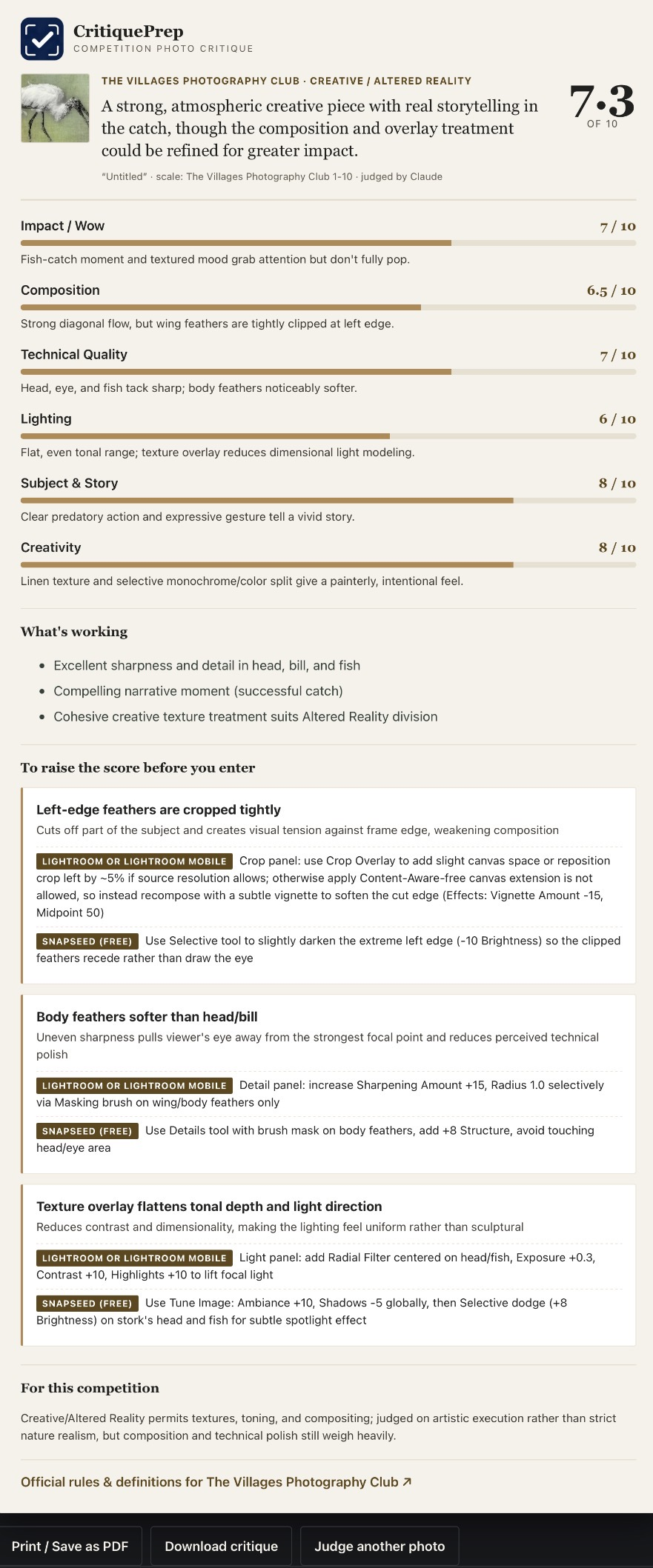
Recommendations name the exact Lightroom panel, slider, and amount, in order — and stay within your competition’s rules.
Rank a batch
Switch to Rank a batch to add up to 10 photos and have them compared and ranked, so you know which to enter.
Save & print
Every critique and ranking can be printed, saved as a PDF, or downloaded, and is kept in your history.
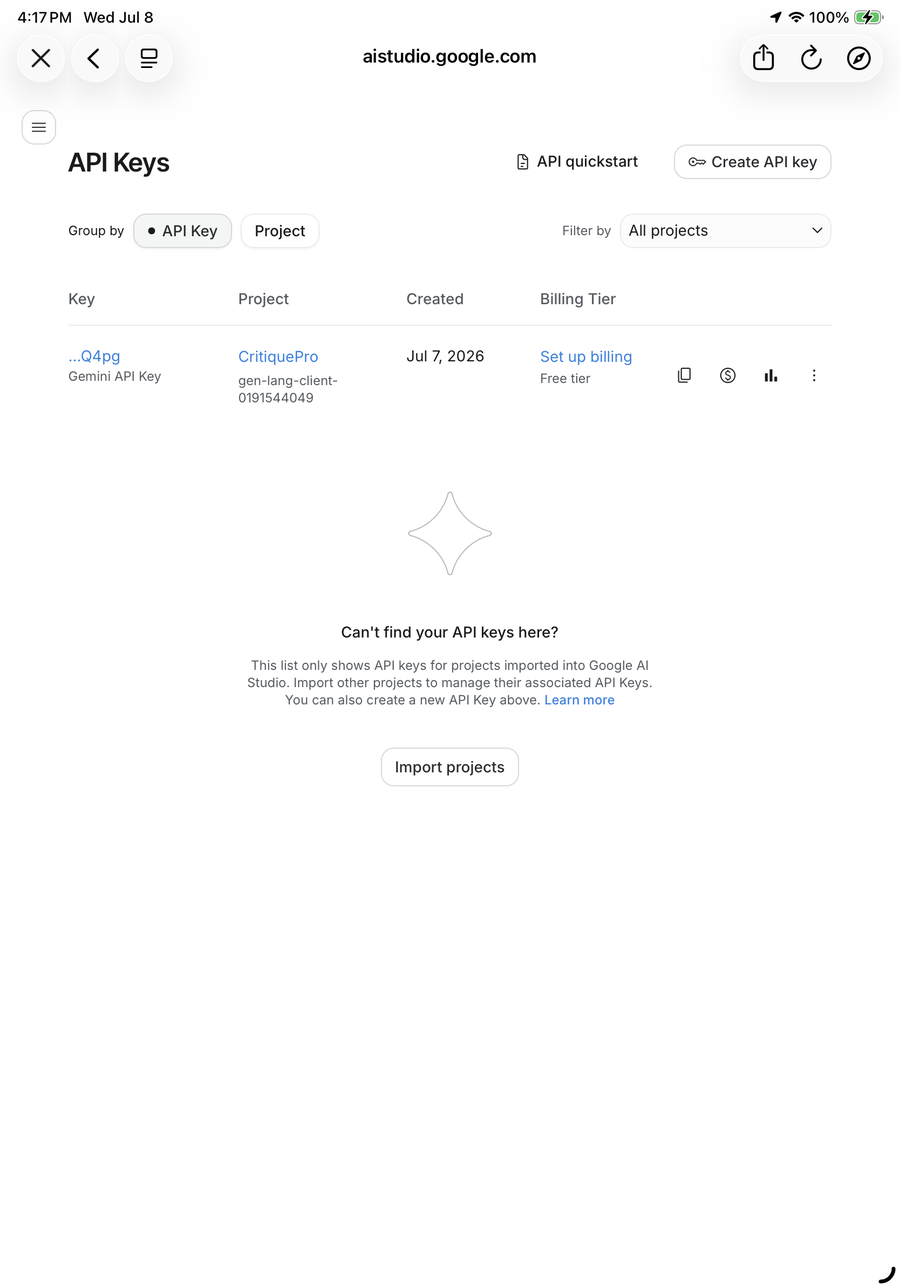
An API key is a private code that lets CritiquePrep use an AI on your own account. It’s free to get with Gemini, and the key is stored only on your device — never sent to us.
Get a free Gemini key (recommended)
Tap the button below to open Google AI Studio.
Sign in with your Google account (the same one you use for Gmail).
Look for a button that says “Get API key” or “Create API key.” Tap it.
A long code will appear that starts with AIza… — tap to copy it.
Come back here, open Settings (top of the page), and paste the code into the Gemini API key box.
The page looks like this — tap Create API key (top right), then copy the code that appears:
Button names can change slightly over time. If you don’t see “Get API key,” look for anything that mentions API key and follow it. You paste the key once and CritiquePrep remembers it.
Your critique lists improvements in priority order. Here’s how to act on them in Lightroom, whether you’re new to editing or a seasoned hand.
Here’s a real critique — notice each fix names the exact panel, slider, and amount to use:
Work top to bottom
Start with the first recommendation. It’s the one with the biggest payoff. Do them in the order given.
Make the tonal moves first (Basic / Light panel): exposure, highlights, shadows, whites, blacks — using the exact sliders and amounts named. Nudge, then look.
Then color & presence: white balance, vibrance/saturation, texture, clarity — only as suggested.
Then local adjustments: use masks to dodge, burn, or fix one area (a bright edge, a dark eye) without touching the rest.
Finish with detail: sharpening and noise reduction last, checked at 100% zoom.
Compare and re-judge. Make a Virtual Copy first (right-click → Create Virtual Copy) so you can compare before/after, then run CritiquePrep again to confirm the score improved.
Keep it competition-legal
For nature and wildlife divisions, stick to tonal and local adjustments only — never add, remove, or move elements. CritiquePrep’s suggestions already respect this, and it flags anything risky.
Beginner tips: Lightroom is non-destructive — you can always reset. Don’t overdo it; judges notice heavy-handed edits. Small, deliberate moves usually win.
Remember: CritiquePrep never edits your file. You make the moves — it just tells you which ones.
One-time setup: add your free Gemini key to start critiquing.
STEP 1Add your photograph
Tap to choose a photo, or drag it here
JPEG, PNG or TIFF · on iPhone, pick from your camera roll
STEP 1Add up to 10 photos to rank
Tap to choose photos, or drag them here
Add 2–10 images · JPEG, PNG or TIFF